Room Control • TC10
v1.0.0
No room selected
--:--

Concierge Pantry

Select refreshments and we'll deliver to the room.

Live inventory

Cart

Linked to selected room
Empty

Environment Controls

Glance at live states, then fine-tune lights, climate, and blinds.

Lights Off
Climate 23° · Auto
Shades 50%

Lights

Front of room
Power
2700K (warm) — 6500K (cool)

Climate

LinkedGo ST802 Thermostat
Power
Temperature Setpoint (5-35°C)
24 °C
Room: -- °C
Cool
Heat
Dry
Vent
Auto
Low
Med
High

Window Blinds

Control shading per side
All
East
West
0% 100%

Need Help Fast?

Quick references before submitting a ticket
  • Room Tech DeskDial 7000 from any in-room phone.
  • Network StatusCheck the status light near the panel for outages.
  • Self-checkReboot touch controller by holding the side button for 5 seconds.
Typical response < 5 min
Coverage 24/7

IT Support Request

Send issues directly to IT
General
Audio/Speaker
Microphone
Camera/Display
Internet/WiFi
Lights/Blinds
Climate/HVAC
Other
Low
Medium
High
Critical

Room Assignment

Confirm this panel's location and sync it with XTend Cloud.
Current: No room selected

Panel Preferences

Pick a theme and review quick diagnostics.
Dark
Light
Connection Online
Last Sync Just now
Debug Log

Device Registration

Secure this panel with XTend Cloud authentication.
Device ID
Status Not Registered
Token None
Get this token from your IT administrator.
QR Code
Scan to get info on your mobile

This meeting room is Teams Room enabled!

What does this mean:

Your meeting will appear in the meeting room automatically as part of your booking. You can join directly from the tablet—simply click Join now.

You can also connect to the VC in the room using your laptop. Here’s how:

  1. The screen should be on; if not, power it on using the remote or the screen’s power button.
  2. Tap the Poly logo on the lower-right portion of the tablet and choose “Device Mode.”
  3. To project you may:
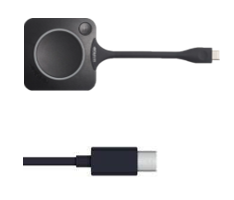
    1. Plug the Barco button into your laptop and, once the light is stable, press it to project.
    2. OR Use the USB Type-C cable.

Connect your laptop

Here’s how you can connect to the VC in this room using your laptop:

  1. The screen should be on; if it is not, power it on using the remote or the power button on the screen.
  2. To project you may:
    1. Plug the Barco button into your laptop and once the light stabilizes, press it to project.
    2. OR Use the USB Type-C cable.

Conference Room A

👥 8 people
Available until 2:00 PM

Quick Book

Reserve this room now

Current Meeting

Room is free